
Your own certificate
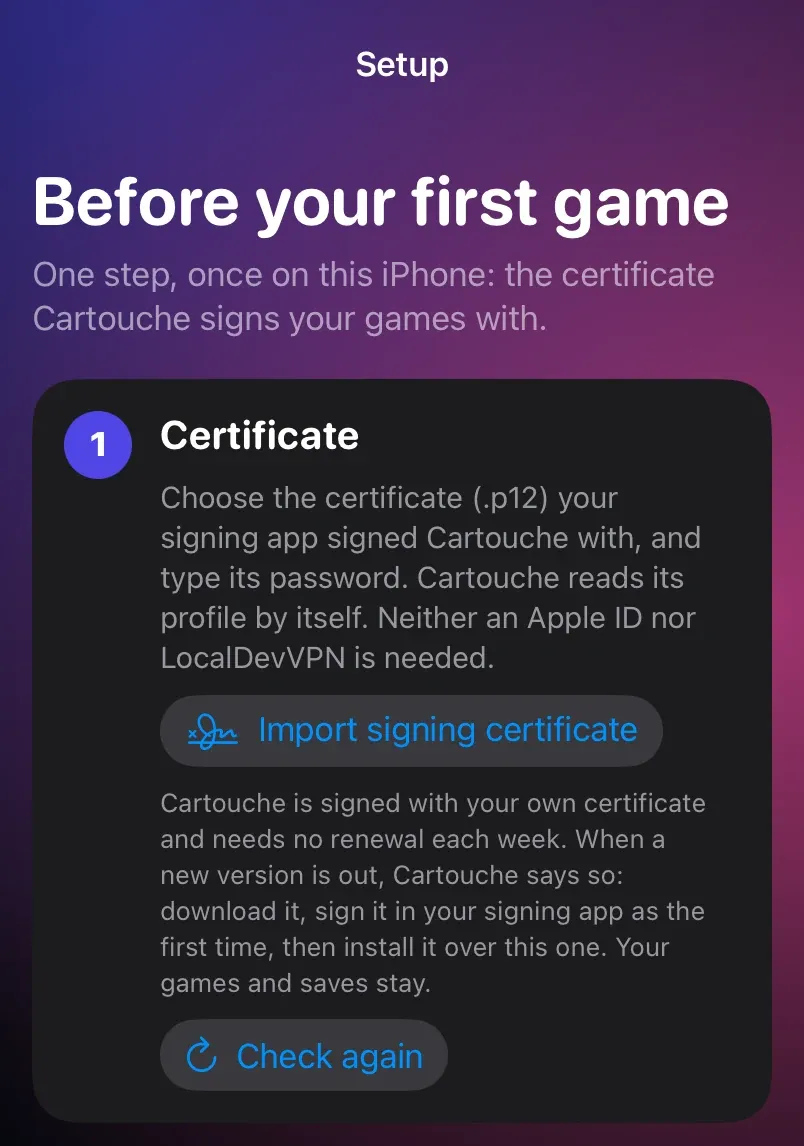
Signing with your Apple account stays the default. If you already have a signing certificate (.p12) and its provisioning profile, the Cartouche Installer can sign Cartouche with them instead: no Apple account, no LocalDevVPN and no weekly renewal.
Cartouche does not recommend certificate sellers, signing apps or signing services.
Install with your certificate
Section titled “Install with your certificate”- In the Cartouche Installer, select your iPhone.
- At the top of the Apple Account step, choose Certificate (.p12).
- Choose your certificate (.p12), type its password (leave it empty if it has none), and choose its profile (
.mobileprovision). - Install Cartouche. Signing happens on the computer; the Installer signs in to no Apple account.
- Open Cartouche: it takes your certificate by itself. If iOS asks you to trust the developer or to turn on Developer Mode, do it in Settings.
What the profile must allow
Section titled “What the profile must allow”- Increased Memory Limit. Without it, Cartouche and your games have far too little memory for most games. The Installer warns you when the profile lacks it: signing cannot add it.
- The games’ keychain groups. A wildcard profile with your team’s
*keychain permission covers them. - Cartouche’s App ID, or a wildcard one that covers it.
What changes
Section titled “What changes”- Games start in Cartouche’s place: keeping the console behind a game needs the app extensions a single profile cannot sign.
- Cartouche says when a new version is out. Install it from the Installer with your certificate, as the first time: your games, their saves and your certificate stay.
- A certificate that expires or is revoked is replaced the same way: install Cartouche again with the new one.
To go back to your Apple account, install Cartouche again with the Installer’s Apple Account option.