
The console on the Mac
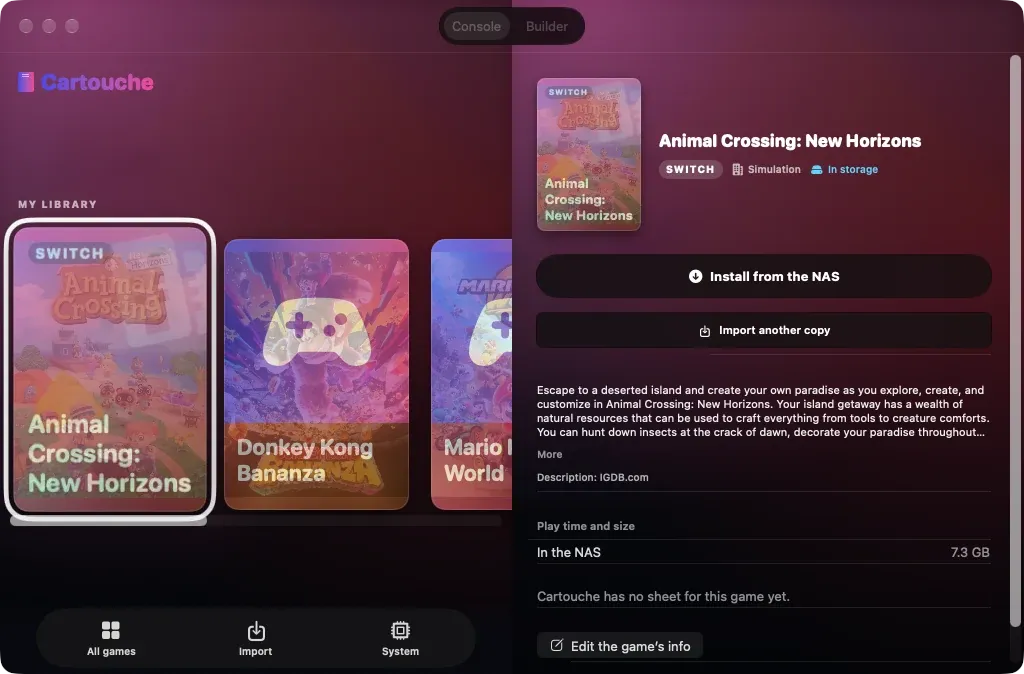
Console, at the top of the window or ⌘1, shows Cartouche’s console, as on the iPhone: your games built for this Mac, with their covers, the game in focus with Play, and its sheet beside it.
Playing on the Mac
Section titled “Playing on the Mac”Play starts the game at once, full screen, Cartouche’s window behind it, with your newest saves. ⌃⌘F puts it in a window. When the game ends, Cartouche comes back in front.
- Game settings opens the game’s settings on its sheet, as on the iPhone, with the Mac’s own: display mode, Fullscreen or a window, and controllers.
- The game speaks your Mac’s language when it has it, until you choose one.
- A game your NAS keeps that is not on this Mac yet shows too: Install from the NAS installs it, then Play starts it.
- Remove from this Mac puts its app in the Trash; the game stays in your games folder.
The sheet also says how long you played the game on this Mac and whether it runs here.
Your saves on the Mac
Section titled “Your saves on the Mac”The Mac keeps the saves of the games played there in step with your saves folder, as the iPhone does: the newest copy comes before a game starts, and the Mac’s saves go a few seconds after the game saves. When both sides changed, the saves written last win and the others are kept as a copy. The sheet shows them, with Sync with … now and Put back a copy, and brings in a save from your console as on the iPhone.
This Mac’s copy of a game your NAS keeps stays out of Time Machine: it comes again from the NAS. The game’s saves still go in.
System
Section titled “System”System, on the console’s dock, opens the iPhone’s System page with this Mac’s own sections:
- Your first game: the guide, in this Mac’s three steps: the setup assistant, a game built for this Mac, and that game played.
- Storage: your connections, the same as your paired iPhones’, and the Mac’s games and saves folders (below).
- Open the Builder, with its settings.
- This Mac: its model, chip and macOS, and whether its graphics chip has what nxnative needs.
- Updates: Cartouche for Mac’s, with Check for an update and Install updates by itself.
- Game measurements and Report a problem, as on the iPhone.
The same storage as your iPhone
Section titled “The same storage as your iPhone”Your paired iPhones and the Mac keep the same connections to your storage, passwords included: a shared folder, an S3 bucket, an FTP or SFTP server or your Google Drive added on one comes to the other. The games folder and saves folder you choose on either are kept by both.
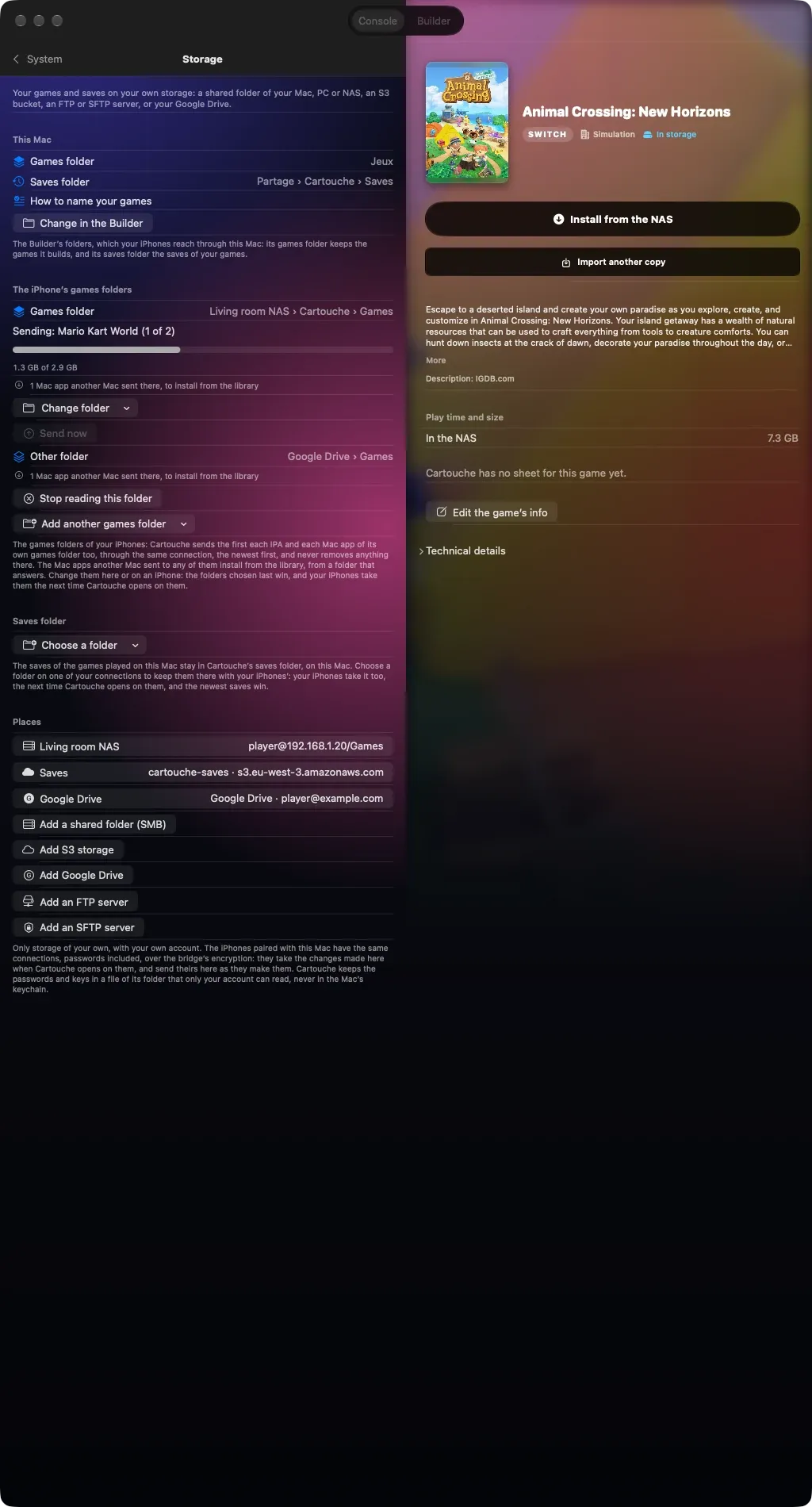
When the games folder chosen on the iPhone is on one of your connections, the Builder sends it each game it builds, one at a time, so that your iPhone finds them even while the Mac sleeps.