
The System page
System, on the console’s dock or the controller’s Menu button, opens over the console. OK, or Menu again, closes it.
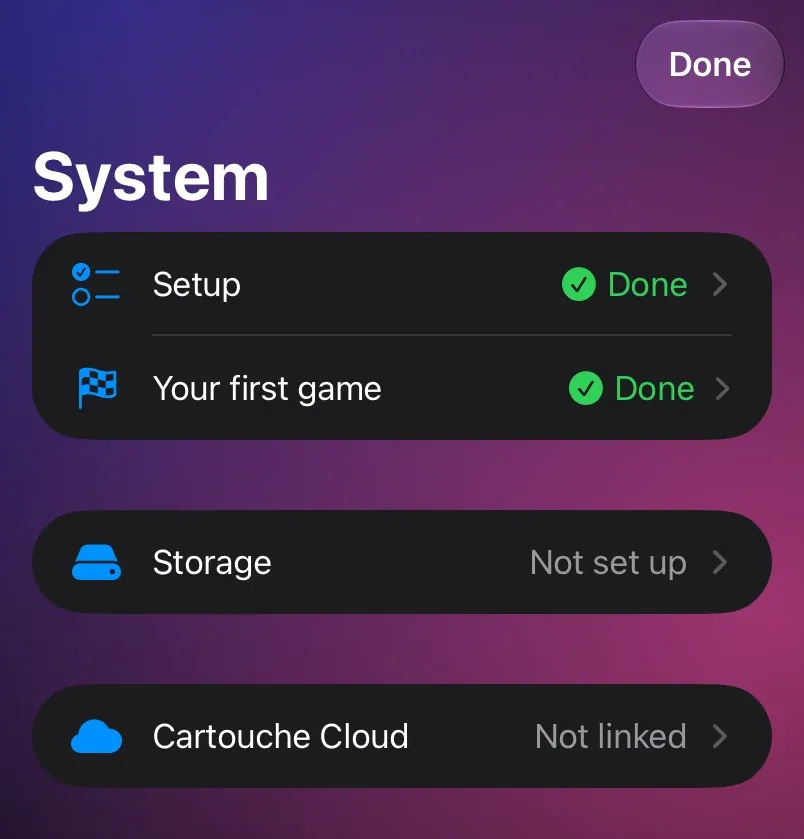
Setup and signature
Section titled “Setup and signature”Setup shows Cartouche’s setup steps, ticked once done. Signature says when Cartouche’s signature expires and the days left.
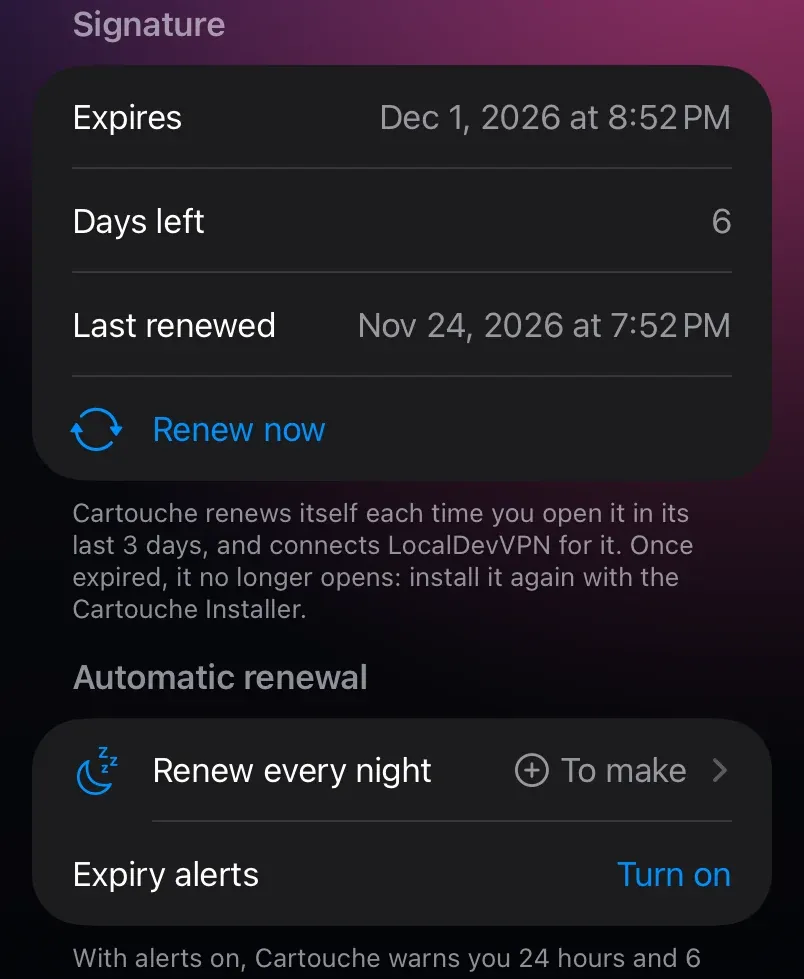
A free Apple account signs apps for seven days. The built-in SideStore renews Cartouche by itself, through LocalDevVPN, which Cartouche connects:
- each time you open Cartouche in the last 3 days of its signature;
- when you tap Renew now, without leaving Cartouche;
- every night, with the Shortcuts automation below.
With Expiry alerts on, Cartouche warns you 24 hours and 6 hours before it expires. Once expired, Cartouche no longer opens: install it again with the Cartouche Installer, over this copy, which keeps your games and saves.
Apple session expired? Cartouche signs in again by itself, or asks you to, with Sign in again.
Renewing every night
Section titled “Renewing every night”An automation in Shortcuts renews Cartouche every night, even while it stays closed. iOS lets no app make it for you, so you make it once:
- In Shortcuts, open Automation, then tap +.
- Choose Time of Day: 4:00 AM for instance, a time when the iPhone charges and is online, every day. Choose Run Immediately, then tap Next.
- Tap New Blank Automation, then add the Enable LocalDevVPN action: it connects LocalDevVPN without opening it.
- Then add Refresh All Apps, among Cartouche’s actions and not LiveContainer’s, and tap Done.
- Back in Cartouche, tap I made the automation.
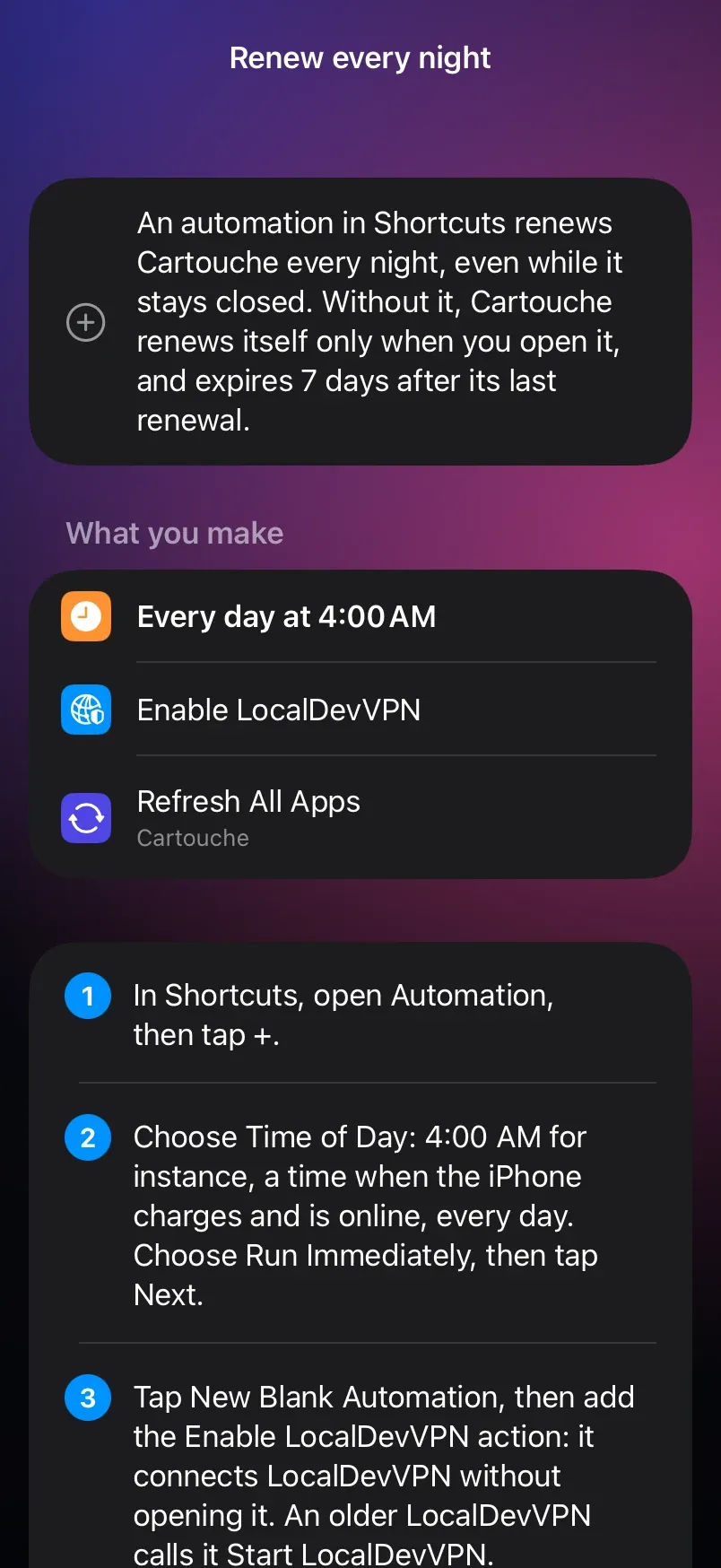
Cartouche follows every run: Renew every night, on the System page, says whether it is to make, made, on, or failed and why, and what to fix.
Updates
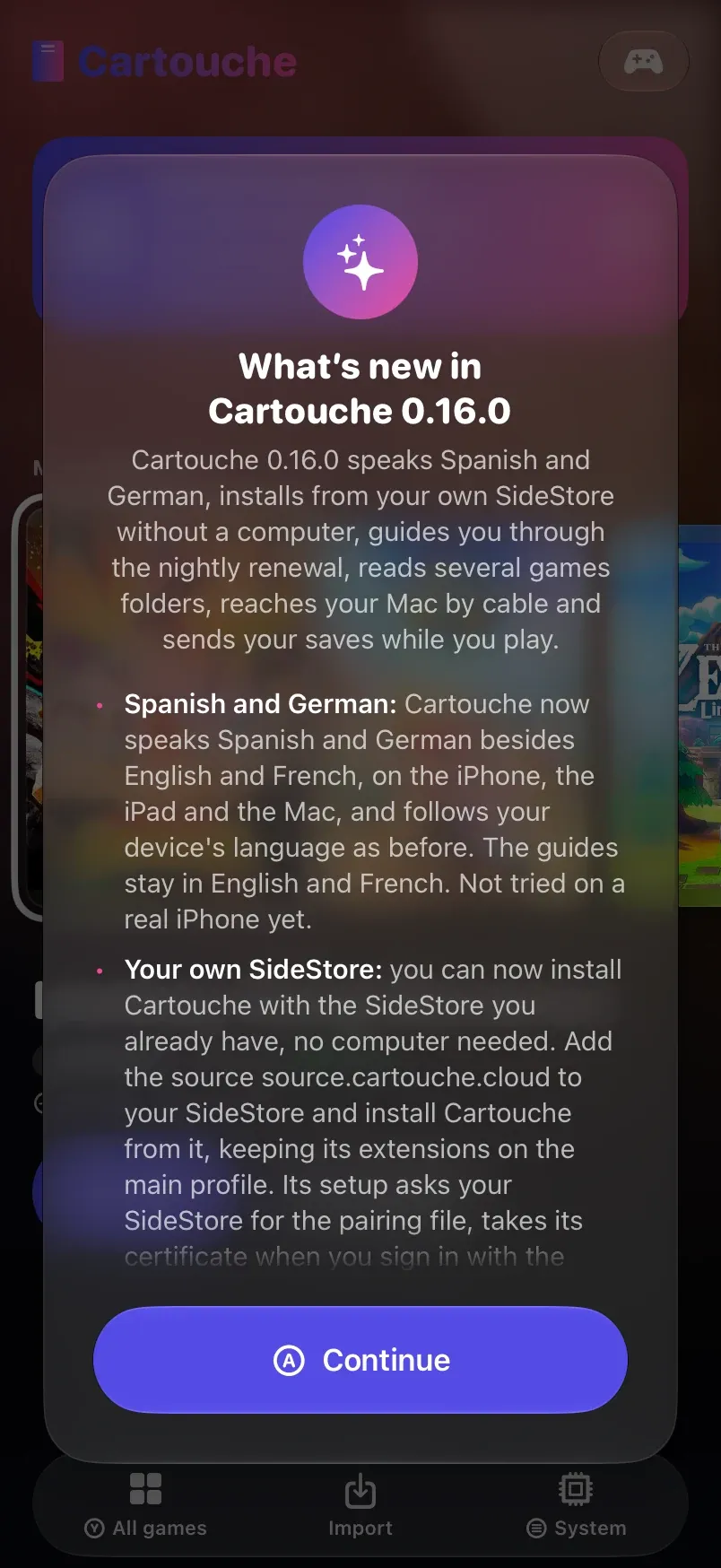
Section titled “Updates”Cartouche offers its new versions over the console, and installs them itself through LocalDevVPN, without a computer. It then closes: open it again. Your games, their saves and Cartouche’s settings stay.
After an update, Cartouche opens on What’s new, in your language. System › Updates also has Check for an update, and What’s new of the last versions.
Memory
Section titled “Memory”Cartouche gets Increased Memory Limit, even with a free Apple account. Memory shows the limit iOS gives Cartouche here, the one it gave the last game behind the console, and whether Increased Memory Limit is active. While a game runs holds Keep Cartouche open behind the game (Playing).
Storage, builds and Cartouche Cloud
Section titled “Storage, builds and Cartouche Cloud”- Storage: your games folder, your saves folder and your places.
- Builds on your Mac: with a Mac paired, all its builds, driven from the iPhone (Your iPhone and your Mac).
- Cartouche Cloud: link this iPhone to your account, and follow the games built for you.
Game measurements
Section titled “Game measurements”After each game, Cartouche sends what nxnative measured while it ran, such as frame rate and memory, so that games run better on iPhone, iPad and Mac. Never your Apple account, your iPhone’s name, your files, the addresses of your storage or the game’s log. System › Game measurements shows what is sent, turns it off, and erases what this iPhone sent. See Privacy.
Report a problem
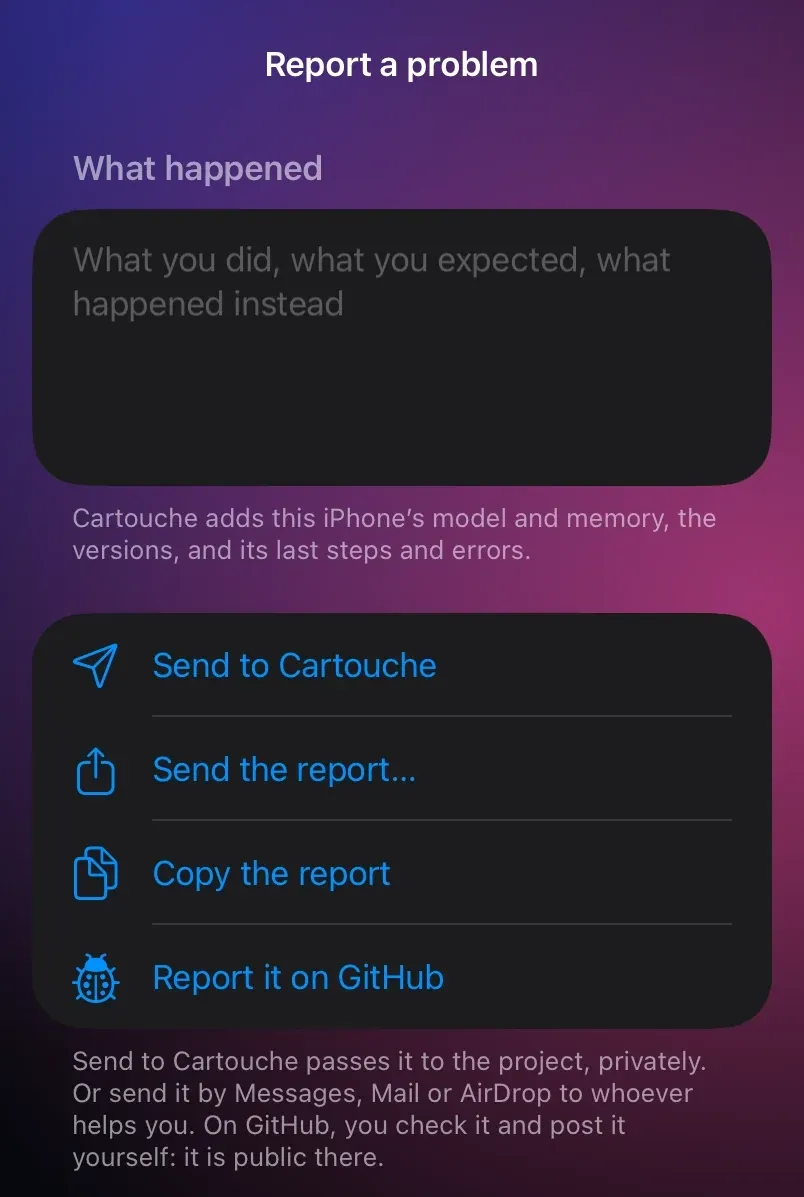
Section titled “Report a problem”Report a problem shows a full report of what went wrong, with this iPhone’s model, the versions and Cartouche’s last steps and errors, without passwords, server names or addresses, user names or Apple account. Nothing leaves the iPhone until you choose how: Send to Cartouche, privately, or by Messages, Mail or AirDrop to whoever helps you. See Getting help.
Other installed apps
Section titled “Other installed apps”An IPA you installed that is not an nxnative game shows here, not on the console. It opens in Cartouche’s place, and can be uninstalled from here.
Reset Cartouche
Section titled “Reset Cartouche”Reset Cartouche erases everything you put in Cartouche, your games and their saves here, your settings and your storage, then starts it again as it opened the first time, without a computer. Saves that are not in your saves folder are named first, with Send them to the saves folder now. What your storage holds, the certificate and the pairing file stay.
Language
Section titled “Language”Cartouche speaks English, French, Spanish or German: it follows your iPhone’s language.