
Playing
The game waits behind the console
Section titled “The game waits behind the console”Play starts the game full screen, with Game Mode on: the most of the iPhone’s processor and graphics chip, and your controllers with the lowest latency.
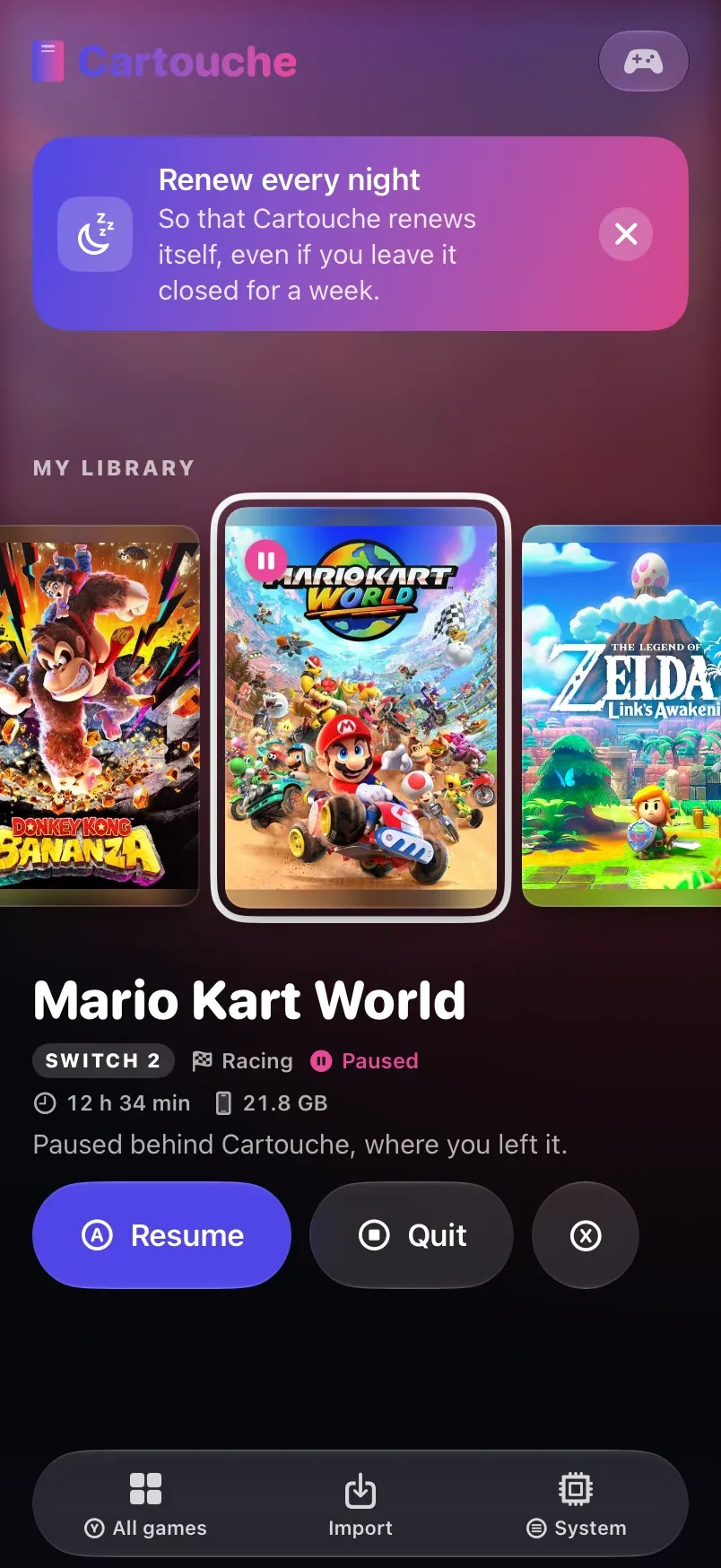
The Home button, at the bottom of the game’s screen or on the controller, brings back the console without ending the game. The game stays paused where you left it:
- Resume, or the controller’s Home button again, goes back to it;
- Quit ends it, once you have said so: progress since the game last saved is lost;
- Play on another game asks first, since one game runs at a time.
The on-screen Home button hides after a few seconds: touch just below where it was to bring it back.
A game that needs more memory
Section titled “A game that needs more memory”A game that needs more memory than it has behind the console starts in Cartouche’s place instead, with all of Cartouche’s memory: the console closes while it runs, and opens again when the game ends. The game’s sheet says so, with Try behind Cartouche again.
If iOS closes a game near its memory limit behind the console, Cartouche says so, and the game starts in Cartouche’s place from then on. System › While a game runs › Keep Cartouche open behind the game turns the console behind the game off for every game.
On a TV
Section titled “On a TV”Connect the iPhone to a TV with a cable, or mirror its screen with AirPlay to an Apple TV or a TV that has AirPlay. The TV shows the game alone, as a console on its dock, and the controls stay on the iPhone. With the TV, the game stays sideways.
There is no Apple TV version: the iPhone runs the game and sends it to the TV.
Upright or sideways
Section titled “Upright or sideways”Hold the iPhone upright, and a game built by a recent nxnative turns with it, its picture above its controls. A game built before stays sideways. On an iPad, turn it sideways to play.
Siri and the Home Screen
Section titled “Siri and the Home Screen”Say “Play Stardew Valley in Cartouche” to Siri, or use Play a Game, Cartouche’s action in Shortcuts: the game starts as Play starts it. A shortcut of it added to the Home Screen gives the game an icon of its own. Each game’s sheet shows how, under Siri and Home Screen.
Installing and updating a game
Section titled “Installing and updating a game”A game in your games folder installs from its sheet or from the home, with Install from that place. The screen says how it comes, by cable, through Tailscale or over Wi-Fi, and how fast, with a tip when it could go faster.
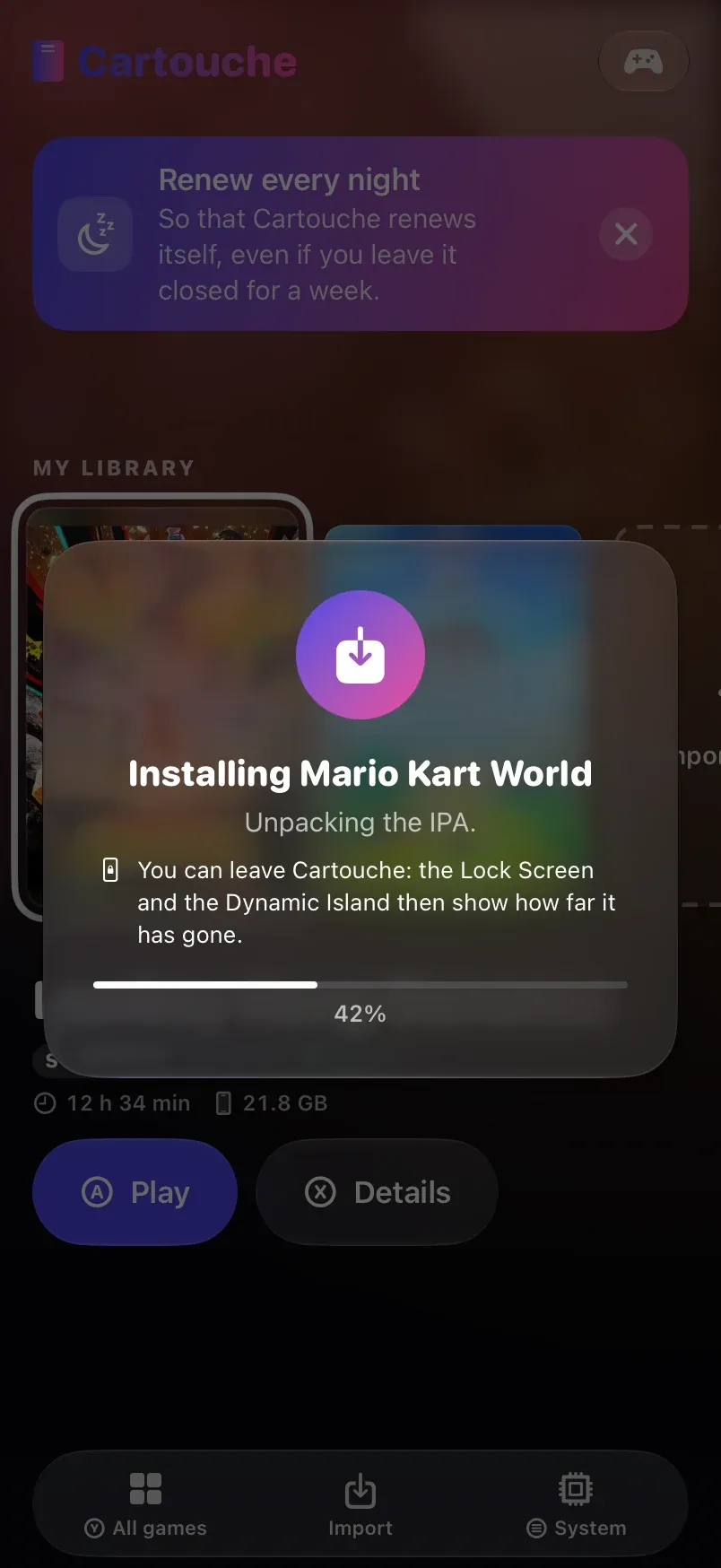
- You can leave Cartouche meanwhile: the Lock Screen and the Dynamic Island show how far it has gone, in a Live Activity.
- A dropped connection picks up where it stopped once the network is back.
- A newer build of a game in your games folder shows as Update: updating keeps your saves.
- A game built without its game files installs with the
romfs.imgbeside its IPA in the games folder.
When something stops an install or a start, Cartouche says why and what to do, and Copy the report under the error gives whoever helps you what they need. See Troubleshooting.