
Game settings
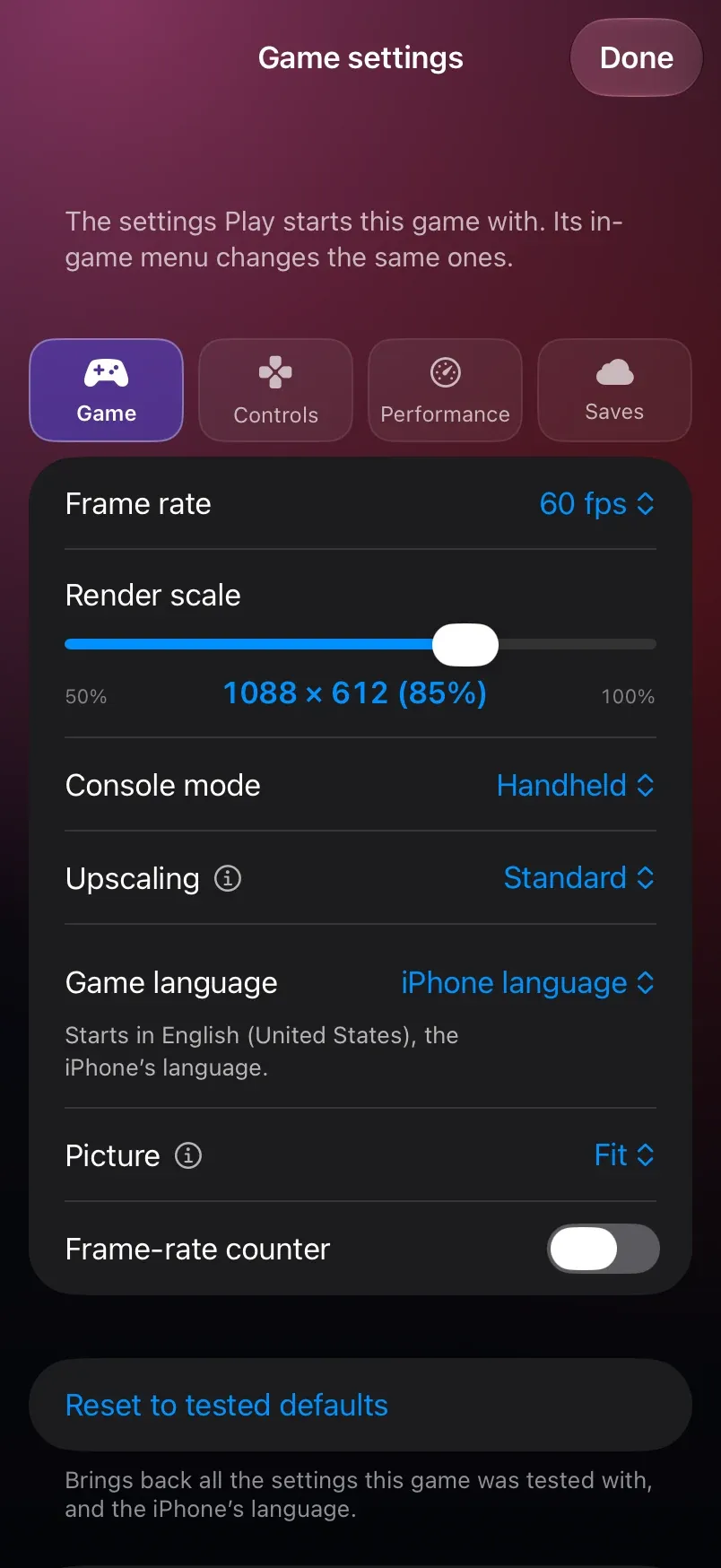
Game settings, on a game’s sheet, holds the settings Play starts the game with: the ones nxnative’s own screen shows before a game, on a page of Cartouche’s, in your language. The game’s in-game menu changes the same ones.
Sections
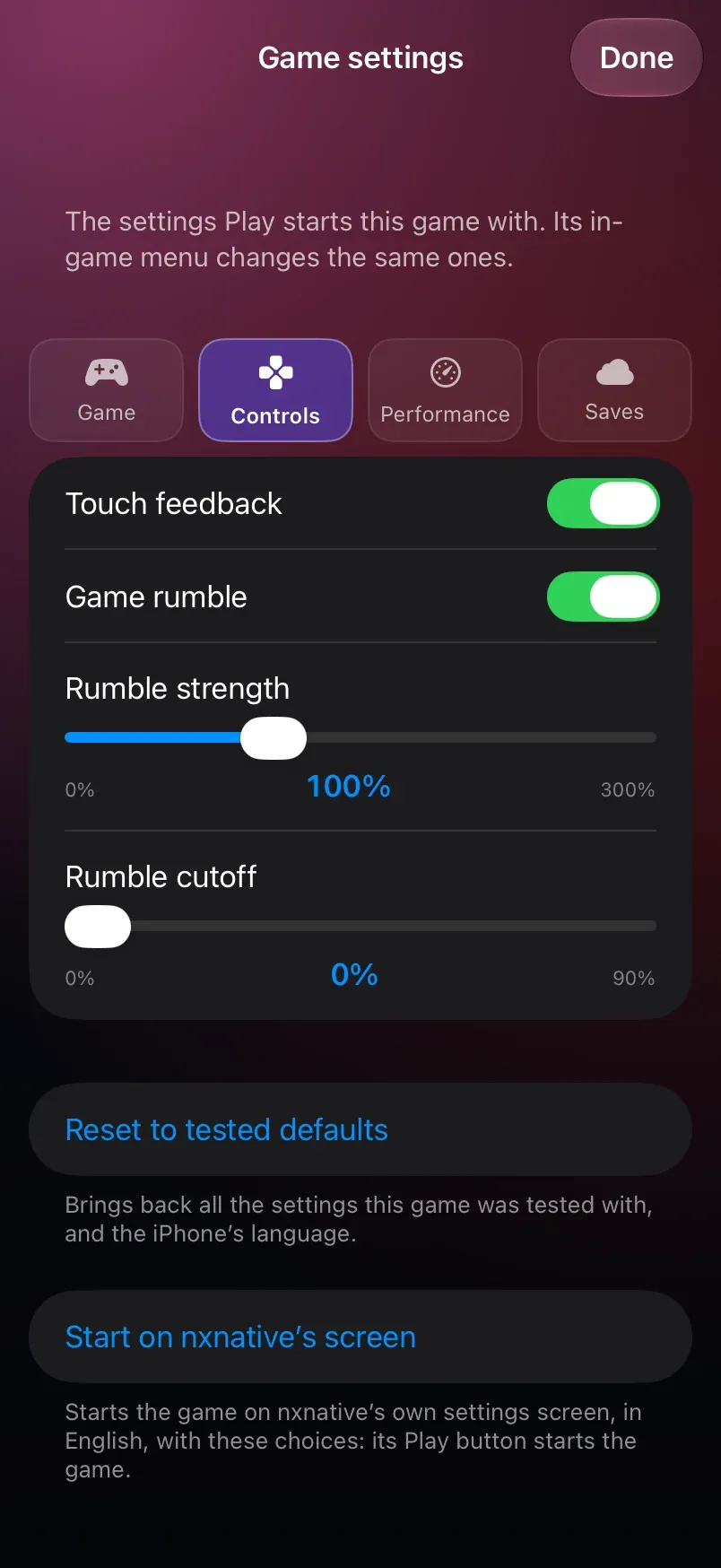
Section titled “Sections”The settings come in sections, Game, Performance, Controls and Saves, one at a time: tap a section, or press L and R on a controller. What a game offers depends on the game; the most common are:
- Frame rate and Render scale, with the size in pixels the scale gives.
- Console mode: Handheld or Docked.
- Picture: Fit or Fill the screen.
- Upscaling, Dynamic resolution, Frame-rate counter and Performance HUD.
- Game rumble and Touch feedback.
- Game language (below).
The ⓘ beside a setting says what it does. A setting a game’s files fix shows greyed out.
Reset to tested defaults brings back every setting the game was tested with, and the iPhone’s language.
Game language
Section titled “Game language”A game speaks your iPhone’s language when it has it. Before each start, Cartouche picks the first of your iPhone’s languages, in the order of Settings › General › Language & Region, that the game offers. iPhone language, the setting’s first choice, says which one that is.
A language you pick stays the game’s until you choose iPhone language again, or Reset to tested defaults.
Cloud saves
Section titled “Cloud saves”nxnative’s own cloud saves, through a folder of iCloud Drive, are in the Saves section. Cartouche keeps your saves in step on its own, with the saves folder of your storage: you need only one of the two.
nxnative’s own screen
Section titled “nxnative’s own screen”Start on nxnative’s screen starts the game once on nxnative’s settings screen, in English, with these choices: its Play button then starts the game.